Help centre / Jobs, Emergencies & Works Orders
Works orders (POs) for projects, jobs & emergencies
Creating, editing, issuing and tracking works orders — and what suppliers can see.
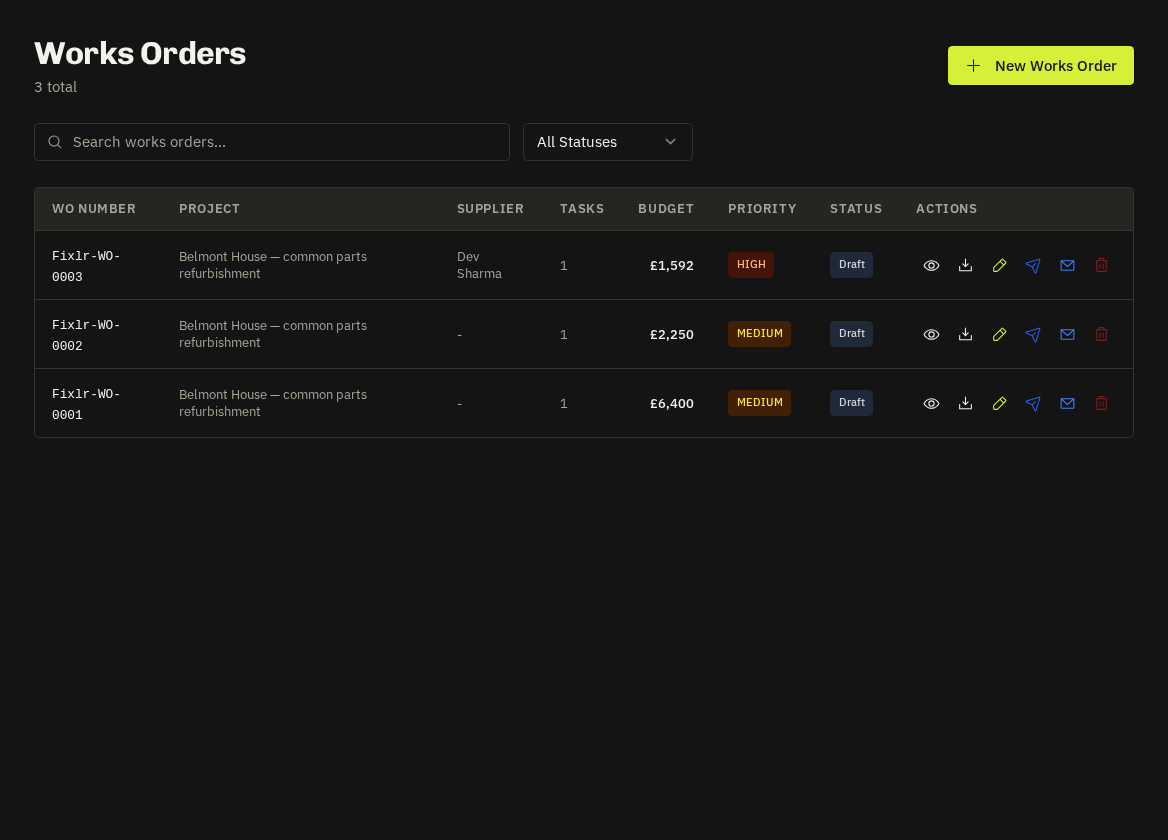
Create
Works Orders → Create Works Order, or the Raise Works Order button on a job/emergency (pre-fills the source). Step 1 picks what it's issued against (Project, Job or Emergency) and the supplier — a searchable roster picker, with + New supplier (not on system) for email-only suppliers. Step 2 sets priority, required completion date, scope, instructions and compliance requirements. Step 3 adds cost lines.
Edit drafts fully
The pencil on a draft row or Edit Works Order in the detail dialog lets you relink the source, change supplier (or type contact details manually), dates, scope and every cost line. Only drafts are editable; issued orders are amended through revisions.
Issue
Sends a branded email with the PDF. Suppliers with a portal account see it under Works Orders and can accept in one tap, decline or request changes (a reason is required; you're notified and the linked job's timeline is stamped).
Supplier-safe by design
The supplier copy (portal, PDF, email) never includes client details or client-facing prices — only their cost lines, plus the access & site info block when the property has notes.
Related: Assign a supplier · Convert a request to a job · Property access notes on dispatch