Help centre / Getting Started
Welcome to Fixlr (admin overview)
What the platform does, who uses it, and how the four portals fit together.
Fixlr is a property maintenance and project management platform. As an admin or project manager you run the whole lifecycle from one place: a client raises a request, you gather and mark up quotes, award the work, dispatch it to a supplier or your in-house team, track it to completion and invoice the client.
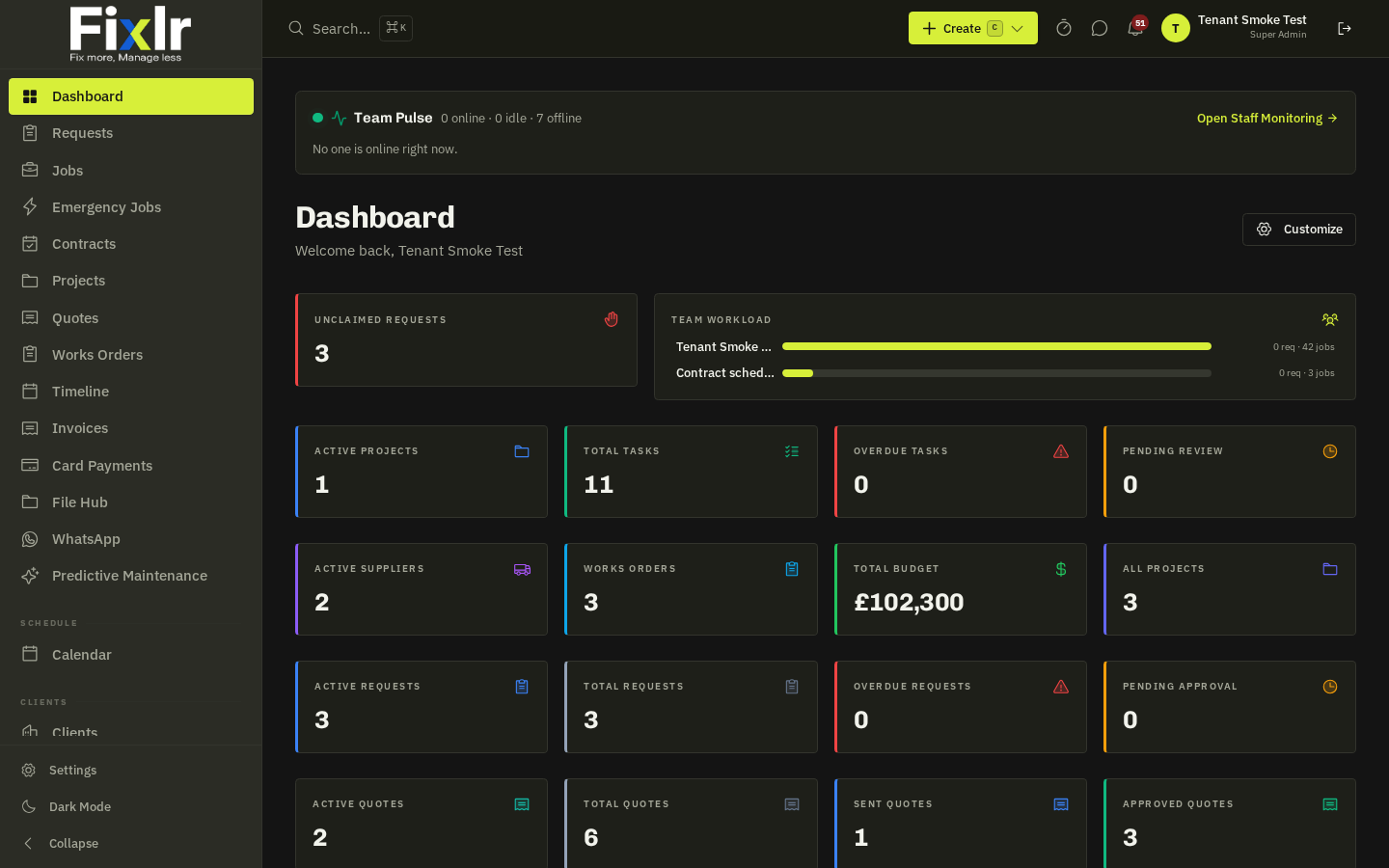
One database, four front doors
| Portal | Who signs in | What they do there |
|---|---|---|
| Admin app (this one) | Your office team | Requests, jobs, emergencies, contracts, projects, quotes, works orders, invoices, clients, suppliers, in-house team, compliance, insights, settings |
Client Portal (/portal) |
Your clients | Raise requests and emergencies, approve quotes, follow jobs and projects, book contract visits, view and pay invoices, manage properties and their own team. White-labelled per client |
| Supplier Portal | External contractors | Receive quote invitations and works orders, quote line-by-line with private markup, accept work, upload compliance documents, arrive / complete |
My Work (/my-work) |
Your own operatives | Today's jobs, route planning, arrive / complete with photos and checklists, timesheets, expenses, purchase orders |
The lifecycle at a glance
- Request arrives — client portal, tenant report form, WhatsApp / email intake, or your team keys it in.
- Quote — invite suppliers, add your markup, send the recommended quote to the client for approval.
- Job — convert the approved request; a works order is drafted for the supplier automatically.
- Deliver — supplier or operative arrives, ticks the checklist, uploads before/after photos, completes.
- Invoice — raise from the completed job, send to the client portal, get paid by card or bank transfer.
Everything is invite-only
- Colleagues → Settings → Users.
- Suppliers → Suppliers → Add Supplier or the public application form at
/apply. - Client portal users → the client's record → Portal Users.
- Operatives → In-House Team.
Tip: Your workspace has its own sign-in door at
<your-host>/<workspace>(and your custom domain if you have one). Share that link, not the generic login page — it shows your logo and only accepts your users.Related: Navigating the admin app · User roles explained · Dashboard overview · What's new