Help centre / Getting Started
User roles explained
Base roles, what each can do, and how permission roles layer on top.
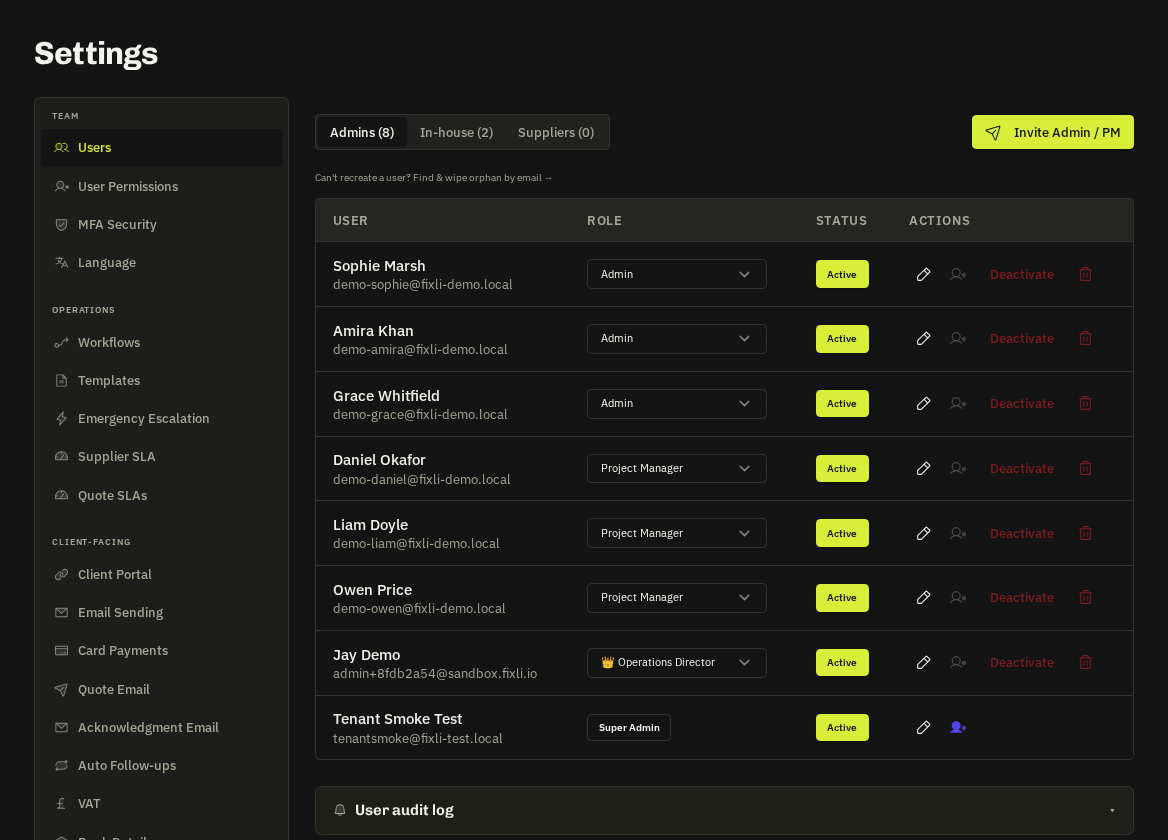
Access is decided by a base role (set when the user is created) plus an optional permission role that switches individual sections on or off.
Base roles
| Role | Portal | Can |
|---|---|---|
| Super Admin | Admin app | Everything, including billing, plan changes, Staff Performance and creating other super admins |
| Admin | Admin app | Full operational access: requests, quotes, jobs, contracts, invoices, suppliers, team, settings |
| Project Manager | Admin app | The same operational surface without user management or billing |
| Team Member | Admin app | Projects, tasks, WhatsApp and the Team Scorecard — office staff who don't dispatch work |
| Stakeholder | Admin app | Read-only dashboard, projects and Portfolio Health |
| In-House | My Work | Only their own jobs, route, timesheets, expenses, POs |
| Vendor / Vendor operative | Supplier Portal | Their own quotes, jobs, works orders and documents; operatives see only assigned work |
| Client | Client Portal | Their own company's work, with a portal tier: Administrator / User / Viewer |
Permission roles
Settings → Permissions lets you define roles such as Finance or Scheduler that hide sections and Settings tabs for a base role. Operations Director is a locked top-tier permission role that also unlocks Staff Monitoring settings. A user with no permission role gets full access for their base role.
Seats
Staff logins (super admin, admin, project manager, team member, stakeholder, in-house) use a seat. Clients, suppliers and supplier operatives are free. When you are out of seats the invite dialog offers Add seats with a prorated preview.
Note: Only a super admin can promote someone to super admin, change the plan or delete the workspace.
Related: User permissions (RBAC) · Users & invites · Client portal users & tiers