Help centre / Jobs, Emergencies & Works Orders
Sub-jobs — split one property visit into trackable issues
Create a main job for the property and a sub-job for each issue, assign each to a supplier or operative, and let the main job complete itself.
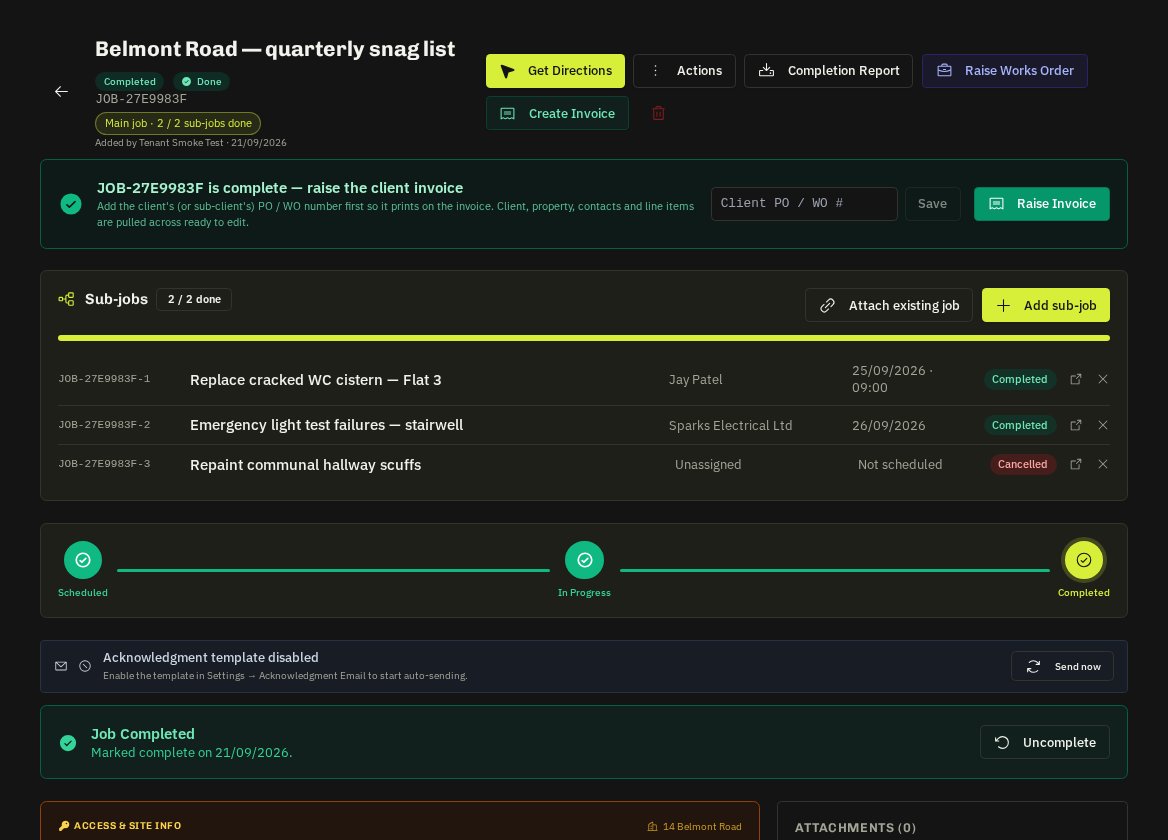
When a client reports several problems at one property, keep one main job for the property and add a sub-job per issue. Each sub-job is a normal job — assigned, scheduled, arrived and completed by a supplier or in-house operative — while the main job tracks the whole visit.
Create sub-jobs
- Open the main job → Actions → Add sub-job (or Add sub-job in the Sub-jobs panel once one exists).
- Give it a title, a category, who it is for (a supplier, one or more operatives, or decide later), an optional date and instructions.
- Save. The sub-job inherits the client, property, address, access notes, site contact and what3words from the main job and is referenced off it:
JOB-27E9983F-1,-2,-3…
You can also Attach existing job — a stand-alone job for the same property becomes a sub-job and keeps its own reference. Detach (×) turns it back into a stand-alone job.
What the people doing the work see
| Who | Where | What |
|---|---|---|
| Supplier | Supplier portal | The sub-job like any other job, with a Part of JOB-… chip; they never see the other sub-jobs |
| Operative | My Work | The sub-job with the same chip; arrive, photos, checklist and complete work as normal |
| Client | Client portal | Only the main job in their Jobs list with an x / y items done chip; opening it lists every sub-job with its status |
How the main job's status moves
- The first sub-job that starts moves the main job to In Progress.
- When the last open sub-job completes, the main job completes itself (cancelled sub-jobs are ignored) — the timeline records it and admins are notified.
- Reopen a sub-job and the main job reopens too.
- The Completed button is hidden on the main job while sub-jobs are open; Complete anyway forces it if you must.
Invoicing
Raise one invoice from the main job. The prefill adds a line per sub-job (reference + title, priced from the sub-job's approved supplier quote when there is one) so you can price and send a single bill. Sub-jobs have no Create Invoice button.
Jobs list
Sub-jobs are nested under the main job — click the caret to expand, or use the Sub-jobs toggle in the toolbar to see them as their own rows. Searching finds sub-jobs even when collapsed.
Tip: Use sub-jobs for a snag list at one property. For the same fault across many properties use separate jobs (or a contract) so each address has its own access notes and schedule.
Related: Jobs overview · Job status workflow · Assign an in-house operative · Invoices