Help centre / Profile & Compliance
Compliance documents: what's required & how to upload
The four required documents, verification, expiry alerts and what happens if you lapse.
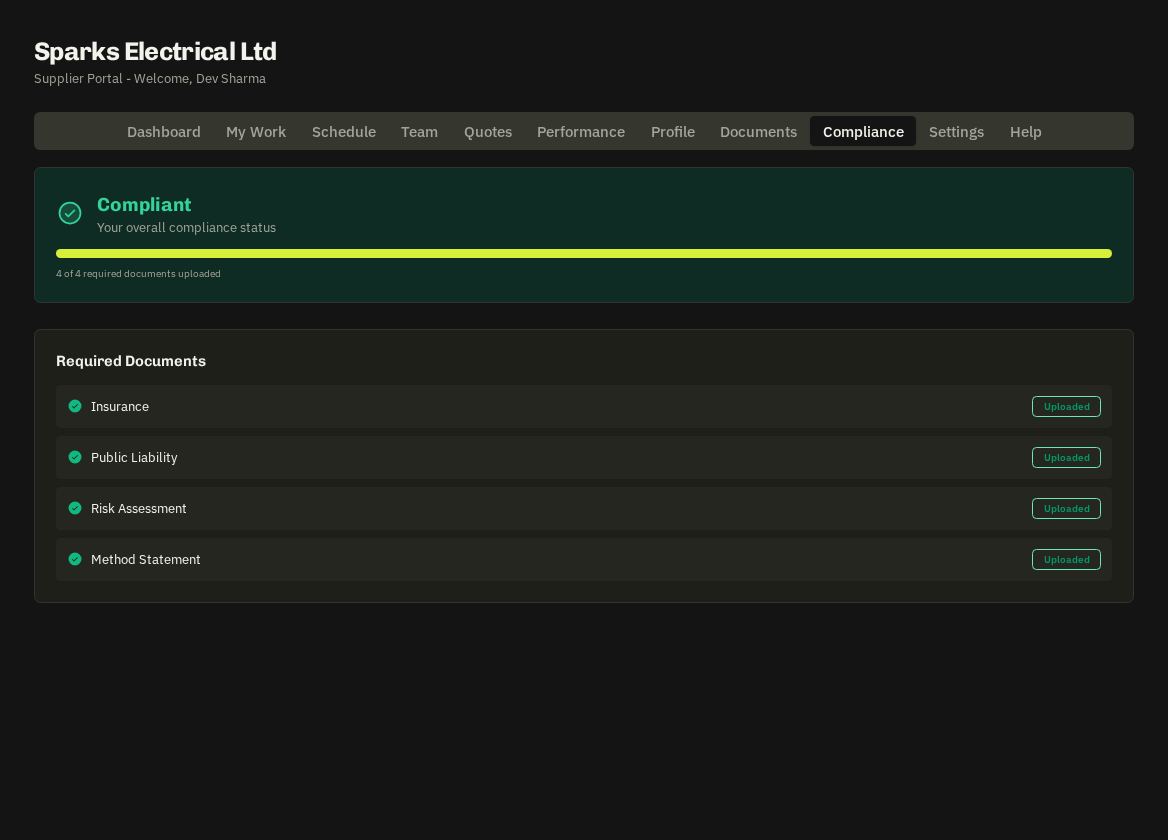
Compliance tab
Your overall status (Compliant / Warning / Non-compliant), a progress bar and the Required Documents checklist — Insurance (employer's/business), Public Liability, Risk Assessment and Method Statement. Each shows Uploaded or an Upload button.
Upload (Documents → Upload Document)
Choose the document type, add the reference/policy number, issue and expiry dates exactly as printed, optional notes, and attach the PDF or photo. New uploads show Pending Review until Fixlr checks them, then Verified.
Expiry
Documents turn Expiring in the run-up to their date and Expired after it. You're reminded by email at 30, 14 and 7 days. Replace a document by uploading the new version — the old one is kept for the record.
Note: your compliance state is shown next to your quotes when Fixlr compares them and on their calendar for every job you're booked on. Expired or missing required documents make you far less likely to be chosen and can pause new assignments until fixed.
- Trade certificates — (Gas Safe, NICEIC, IPAF, asbestos awareness…) can be uploaded under their own types — they strengthen your profile even when not strictly required.
Related: Your company profile · Your performance scorecard