Help centre / My Work & Jobs
Reading a job page
Every section of a job, top to bottom, and which ones matter before you set off.
Tap a job on My Work to open it.
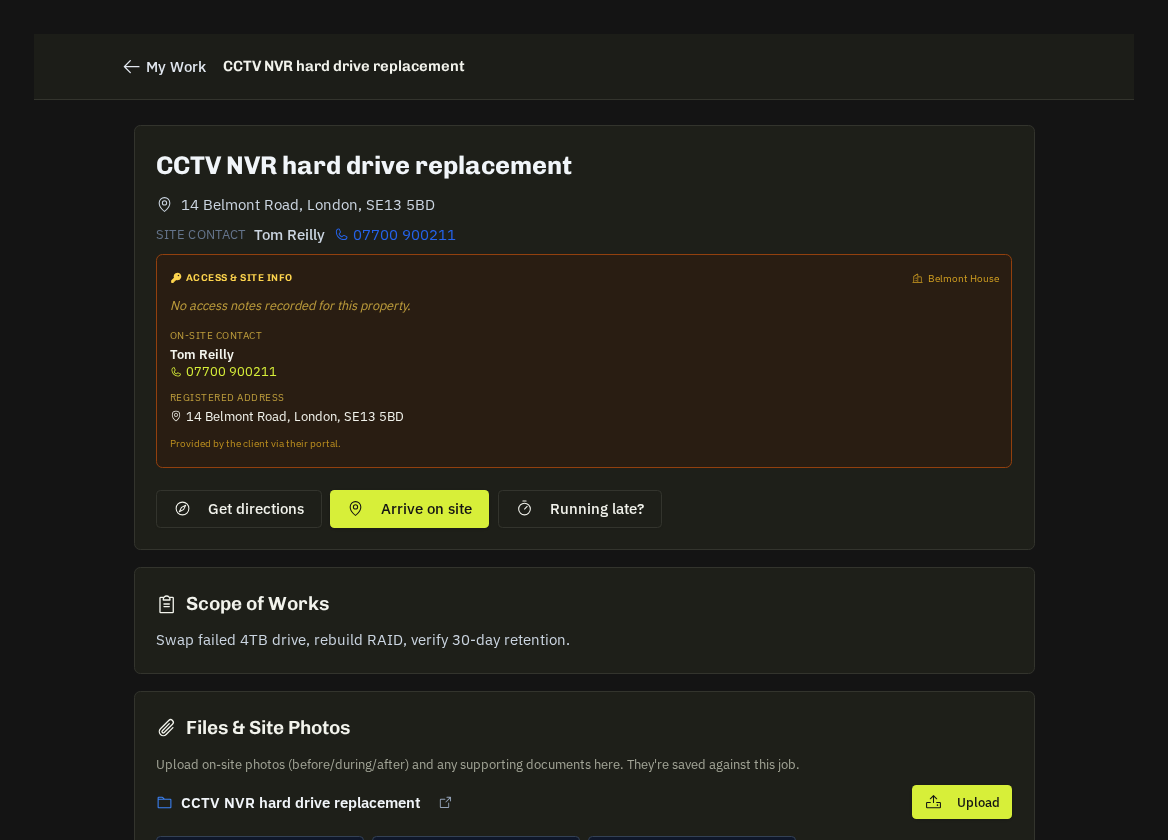
| Section | What it tells you |
|---|---|
| Header | Reference, title, status (Scheduled → In progress → Completed) and a Contract visit chip when it belongs to a contract |
| Address & directions | The full address, a red ///what3words link to the exact entrance and Get Directions (Google Maps) |
| Site contact | Name and tap-to-call number of the person on site |
| Instructions | What the office wants done, plus category and schedule |
| Access & Site Info (amber) | The client's registered access notes — alarm codes, key safe, parking, sign-in. Read before you arrive |
| Required Compliance | RAMS, method statements or policies linked to the job — open and acknowledge each before Arrive unlocks |
| Checklist & Job forms | Steps to tick and forms to fill; required items block completion |
| Files & Site Photos | Before and After folders plus drawings from the office |
| Expenses | Log receipts against the job |
| Action buttons | Arrive when you get there, then Complete job when finished |
Before you set off
- Access notes — do you have the code / key?
- Required compliance — acknowledged?
- Parts — anything on the instructions you need to pick up? Raise a PO if so.
Note: The client's prices are never shown to you; the office handles the money side.
Related: Arriving on site · Completing a job · Required compliance documents