Help centre / My Work & Jobs
Completing a job
The Complete dialog, the checks it runs and what happens after.
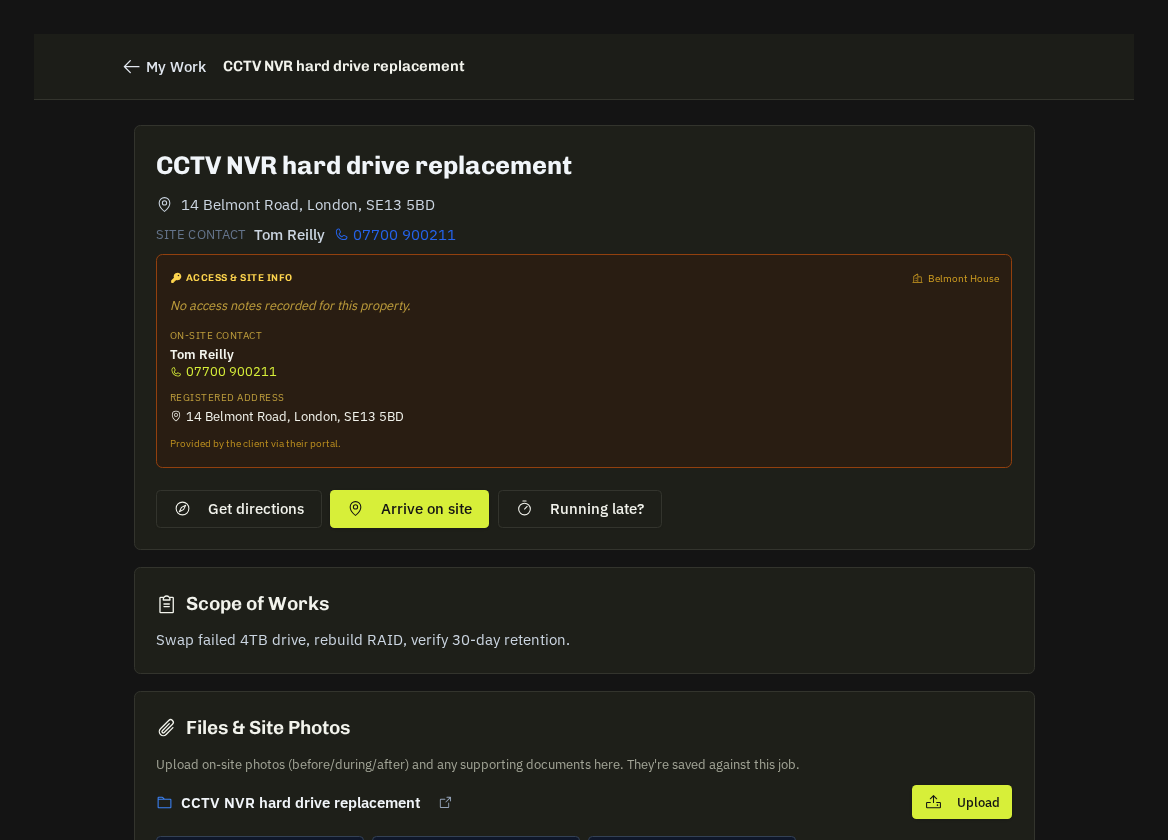
When the work is done press Complete job.
The dialog
Completion notes — what you did, parts used, anything the client or office should know (follow-up needed, access problems). Notes go to the office and, where shared, to the client.
Checks before you can confirm
- A photo in both the Before and After folders.
- No required checklist items outstanding.
- Any required job forms submitted.
Fix anything flagged, then Confirm.
What happens next
| Status | The job moves to Completed |
| Notifications | The office and (for portal clients) the client are notified with your photos |
| Timesheet | Your arrive → complete time is written automatically |
| Contracts | Contract visits become ready to invoice |
| Scorecard | Your completion, photo compliance and on-time record update |
Expenses can still be added afterwards.
Made a mistake?
You can't reopen a job yourself — message the office and they'll reopen it.
Tip: Take the After photo from the same spot as the Before — it's what the client sees first.
Related: Before & after photos · Checklists & job forms · Logging expenses