Help centre / Getting Started
Navigating the admin app
How the sidebar is grouped, what each group contains, and the shortcuts worth learning.
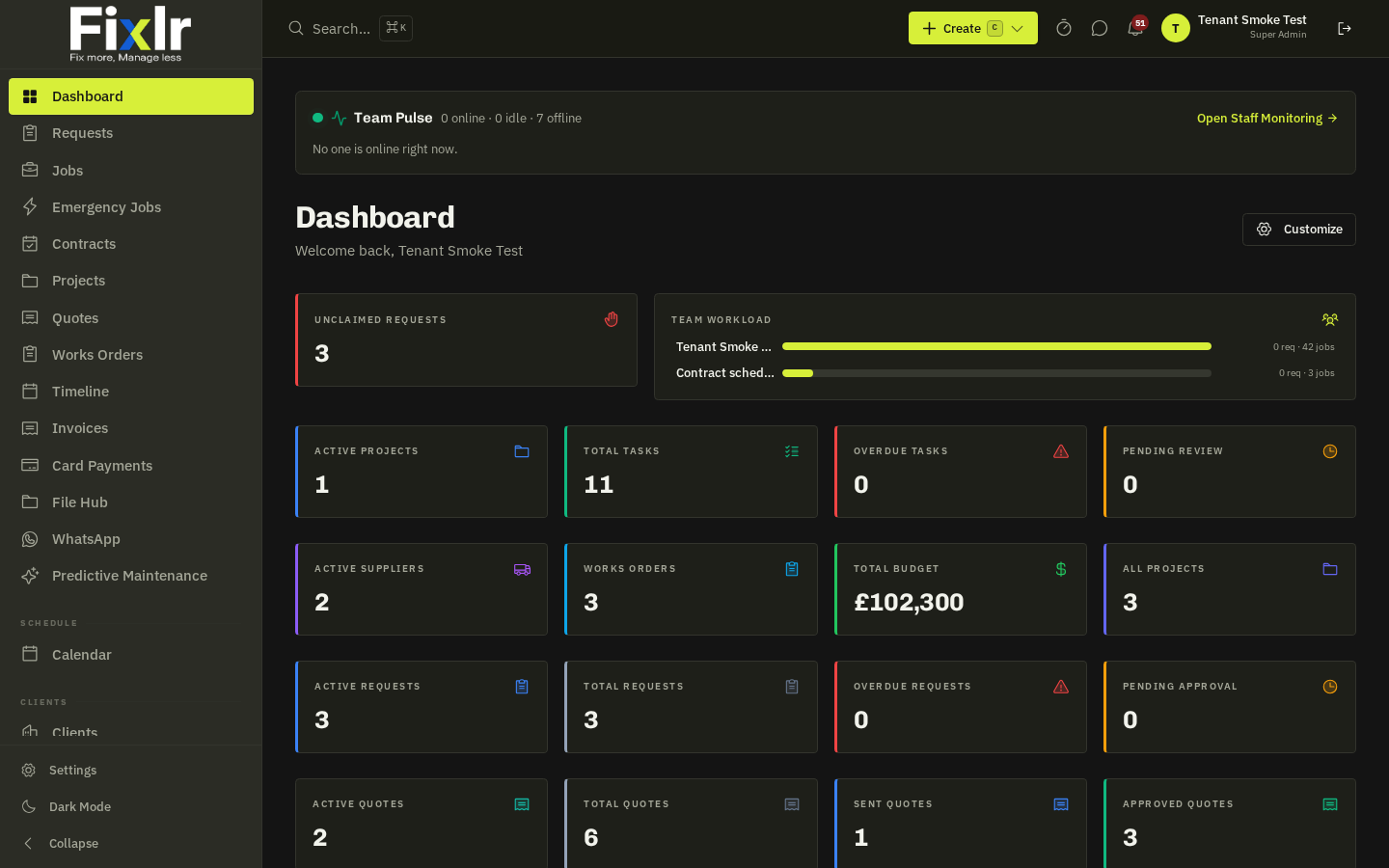
The left sidebar is grouped so day-to-day work sits at the top and configuration at the bottom. Items you are not permitted to see (see User permissions) are hidden automatically, and add-ons not in your plan show a lock.
Groups
| Group | Contains |
|---|---|
| Main | Dashboard, Requests, Jobs, Emergency Jobs, Contracts, Projects, Quotes, Works Orders, Timeline, Invoices, File Hub, WhatsApp, Predictive Maintenance |
| Schedule | The combined Calendar of jobs, emergencies, contract visits, tasks and requests |
| Clients | Client directory and Tenant Report Forms |
| Suppliers | Directory, Nearby, Compliance, Analytics, Compare, Onboarding (applications), Outreach, Scorecard, Team Scorecard |
| In-House Team | Team, Dispatch Board, Timesheets, Expenses, Purchase Orders, Tracking, Mileage Log, Live Team Map, AI Assistant |
| Operational Info | Portfolio Health, SLAs, Compliance Hub, Compliance Calendar, Activity Log, Reports, Staff Performance, Staff Monitoring, Team Schedule |
| Settings | Job Forms, Checklists, Templates, Doc Templates, Notifications — plus the full Settings page from the gear icon |
Header shortcuts
- Search — finds anything by reference (
JOB-0042,INV-…) or name; results are grouped by type. - Bell — notifications; each one deep-links to the record. Sound can be toggled.
- Timer — logs time against a project or task while you work.
- ? — the contextual help drawer for the page you are on.
- Theme (bottom of the sidebar) — Dark, Light or Match my device.
Working faster
- Every list remembers its filters and sort per browser.
- Rows open in the same tab;
Ctrl/⌘-clickopens a new tab. - Column chips on Jobs / Requests filter by status in one click.
- On a phone the sidebar collapses to a menu button and the bottom bar shows the five most used items.
Related: Global search · Contextual help · Dark mode, mobile & installing the app