Help centre / Invoicing
Invoices: raising, editing & sending
Creating invoices from jobs, emergencies, projects and contracts; PDFs, portal delivery, card payment and status.
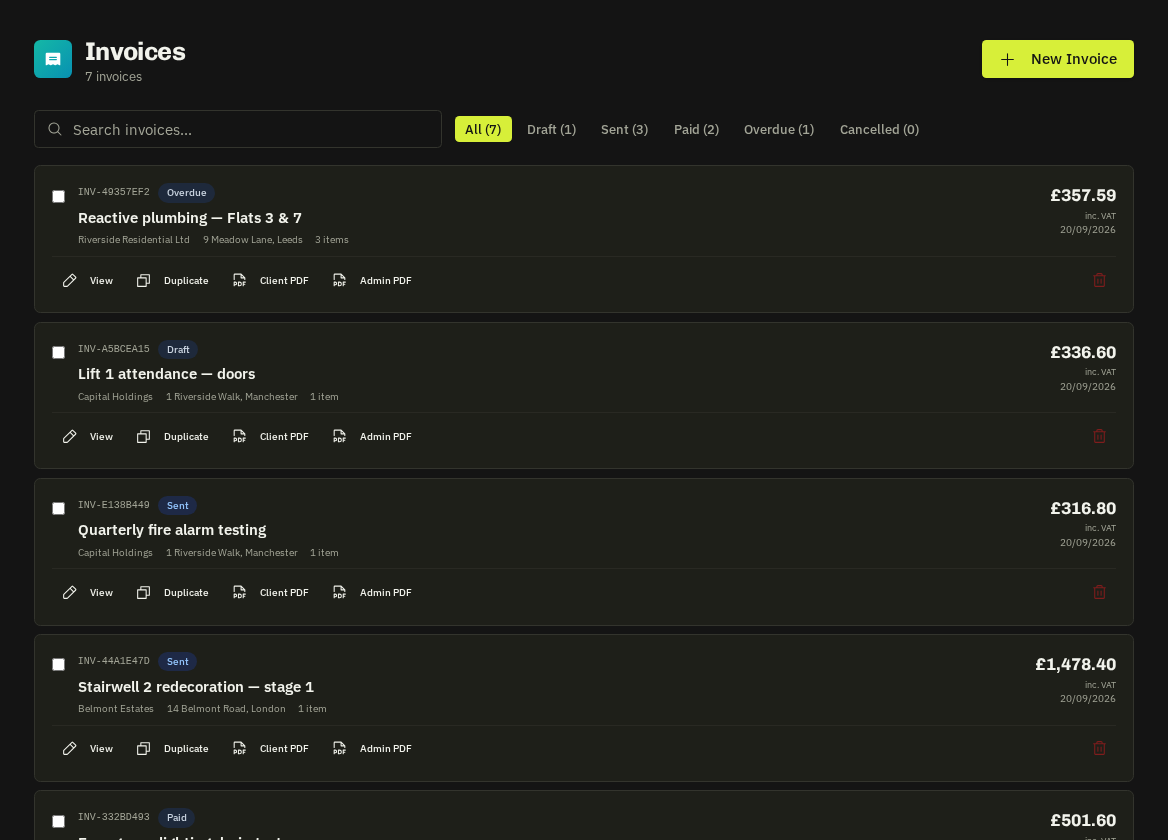
Raise from work
Completed jobs, emergency jobs and projects show a Raise Invoice call-to-action that opens the editor pre-filled with client, property, source reference and lines (approved quote lines, tasks or a summary line). Contracts raise per-visit or combined invoices from their Invoicing tab. You can also start blank from Invoices → New.
The editor
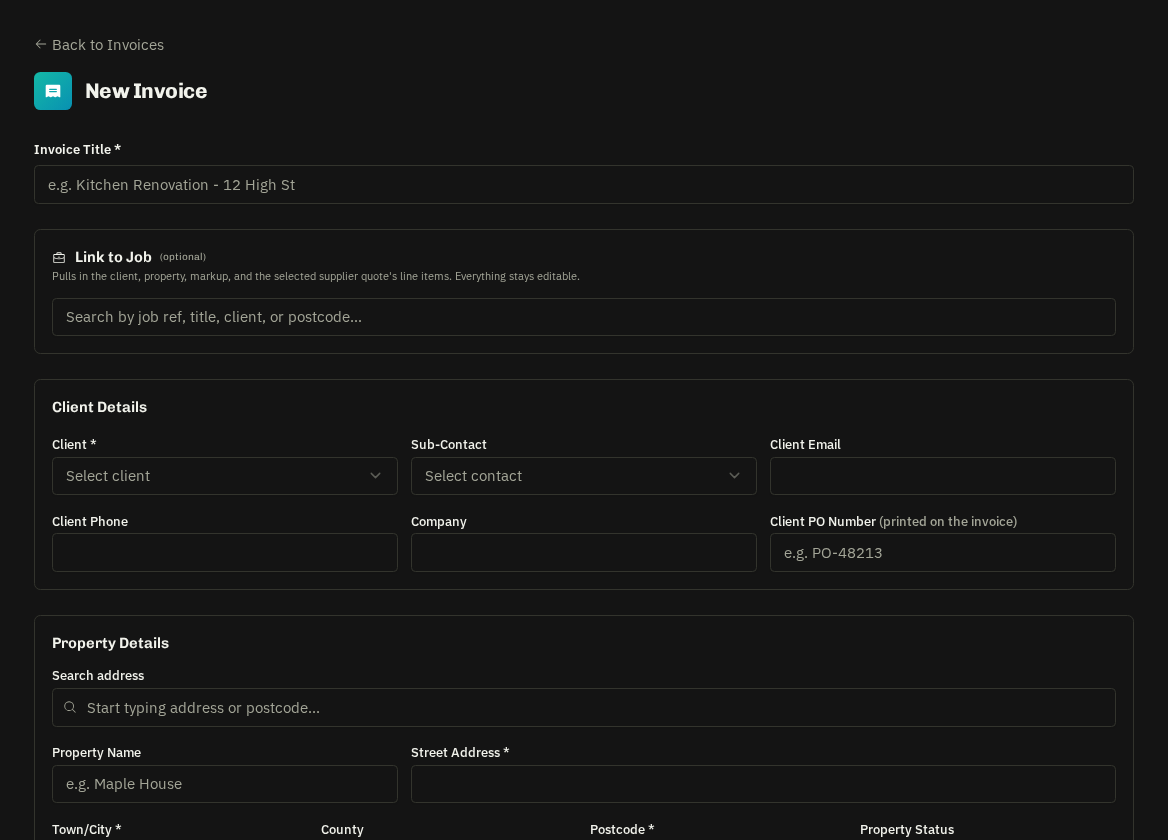
- Client details with Client PO Number, property and source reference.
- Line items — quantity, unit cost, two markup tiers, VAT per line.
- Dates — issue date and due days (default from Settings → VAT & invoicing).
- Terms, notes, attachments — completion photos can be attached automatically.
- Save as template for repeat billing.
Sending
| Option | What happens |
|---|---|
| Send to Client Portal | Portal users get a branded notification (optionally with the PDF) and the invoice appears in their portal, where Administrators can press I've paid or Pay by card |
| Email PDF | Branded email with the PDF attached to any address |
| Download | PDF for your own records or another system |
Statuses
Draft → Sent → Paid (or Overdue / Cancelled). Marking paid records the date and method; a client pressing I've paid notifies you to verify. Card payments mark the invoice paid automatically.
Reminders
Sent invoices trigger an automatic reminder 3 days before the due date and again when overdue; the schedule is editable in Settings → Notifications.
Card payments
With Card payments connected (Settings → Card payments) the client sees Pay by card; the payment, the platform fee and the payout are recorded on the invoice and in Payments → Card.
Tip: Invoice detail shows the full history — sent, viewed, reminded, paid — so you can see whether a late payer has actually opened it.
Related: Client PO numbers · Invoice templates & batch · Contract invoicing · Profit & loss