Help centre / Getting Started
Signing in, branded login links & passwords
Completing your invite, using a branded login link, resetting a password and what a lockout means.
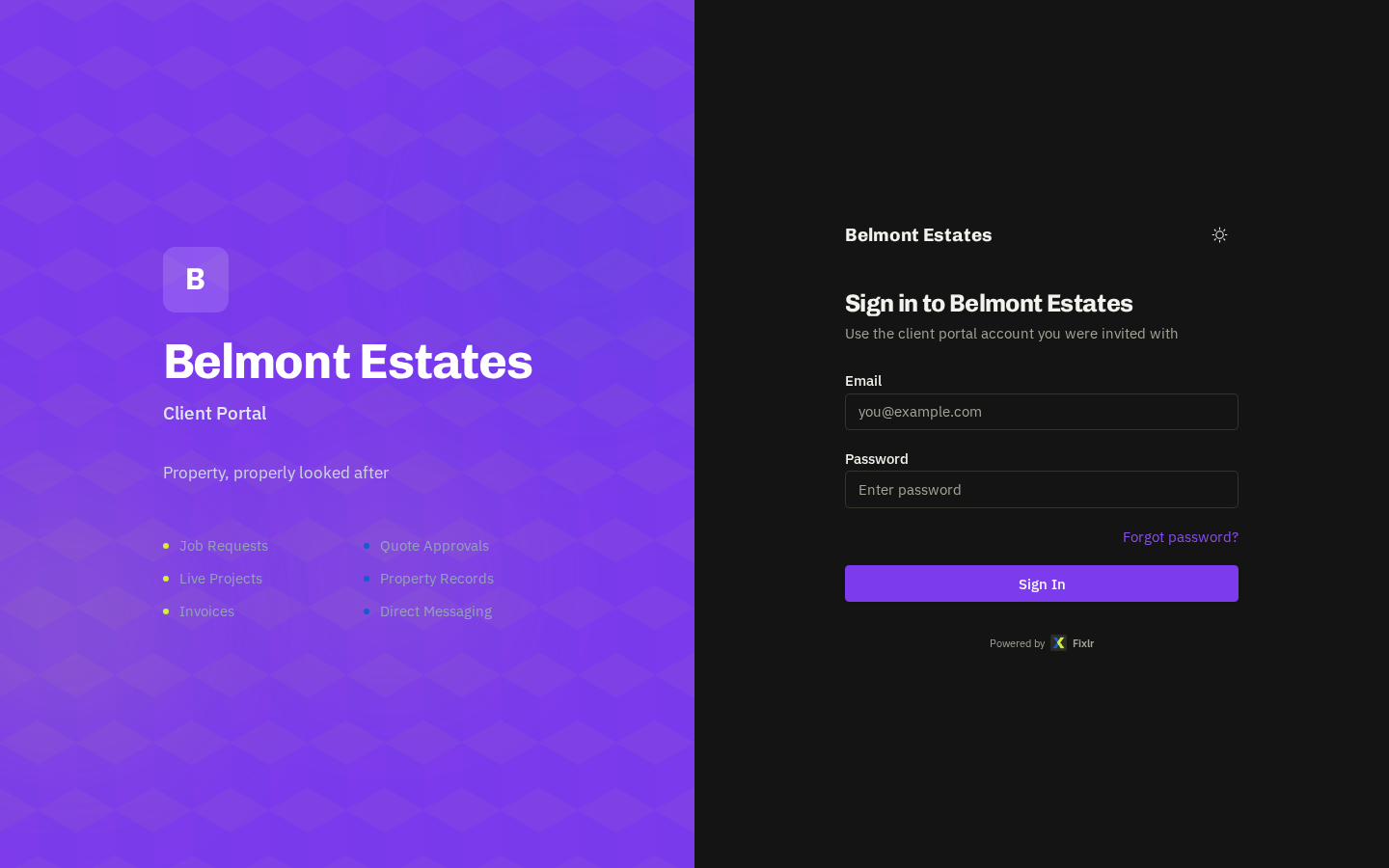
Your invite
Your provider invites you by email. Open it, press Set password, choose a password and you'll be taken to the sign-in screen. Sign in with your email address and the password you just set — you land straight on your dashboard.
- Invite expired? — Ask your provider (or one of your own portal Administrators) to resend it. A fresh link arrives within a minute.
Branded login link
Some organisations are given a custom link such as /login/your-company. It shows your company's logo and name on the sign-in screen and throughout the portal. It uses the same account — only the look changes — so either link works.
Forgotten password
Use Forgot password? on the sign-in screen for a one-time reset link. Signed in already? Go to Settings → Security → Change password.
Locked out (too many attempts)
After 5 failed attempts sign-in is paused for 15 minutes. It clears itself — nobody needs to unlock you. Wait, then try again or reset your password.
Stay signed in on your phone
Install the portal as an app (Settings → Install app, or your browser's 'Add to Home Screen'). It opens full-screen and keeps you signed in.
Related: Welcome to your client portal · Settings, notifications & the app