Help centre / Contracts & Block Bookings
Contract calendar, block booking & per-visit changes
Booking extra dates, editing a single visit, moving/removing it and pausing or ending the contract.
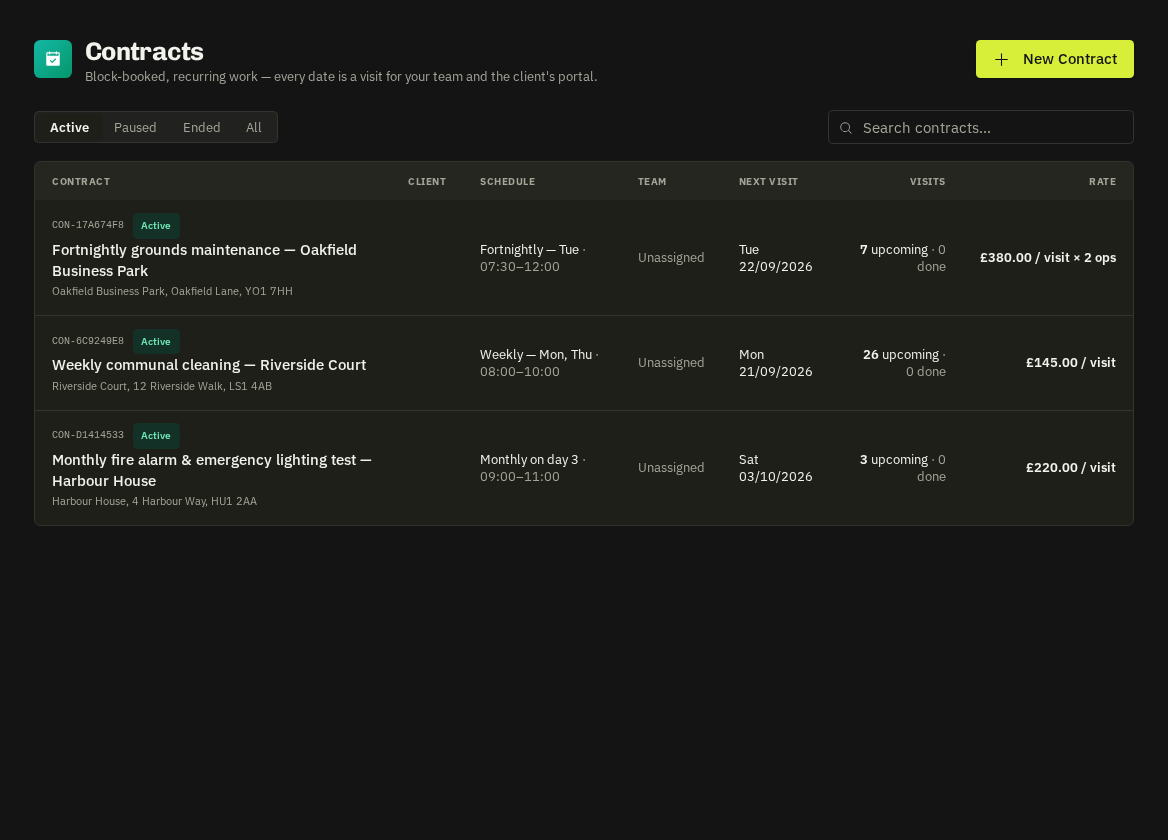
Calendar tab
A month grid of visits — teal = scheduled, violet = booked by the client, orange = on site, green = completed; a red ring marks short notice.
Block-book extra dates
Click one or more empty days. The side panel lets you set arrive/finish times, optionally override the team for just those dates, add a note and choose whether to tell the client. Dates already booked are skipped.
Edit a visit
Click a visit chip (or a row on the Visits tab) to open the visit sheet — move the date, change times, reassign the team for this visit only (the contract default is shown for reference), set the visit's PO, rate or operatives, add instructions, or Remove it (only before it starts and before invoicing). The assignee and, where relevant, the client are notified. Open the full job page from the sheet.
Changing the contract
Edit re-plans future scheduled visits when the pattern changes (manual and client bookings are kept); a new default team is applied to future visits still on the old default; title, address, instructions, rate and PO changes flow to future uninvoiced visits.
- Pause — stops new dates being generated (existing visits stay). End cancels all future visits and tells the client. Delete is only possible while no visit has started or been invoiced — otherwise end the contract.
Related: Contracts: client bookings & flags · Assign an in-house operative