Help centre / Accounts & Payroll
Banking: statements, feeds & explaining transactions
Import or connect your bank, then explain each line in a couple of clicks — Fixlr suggests the match.
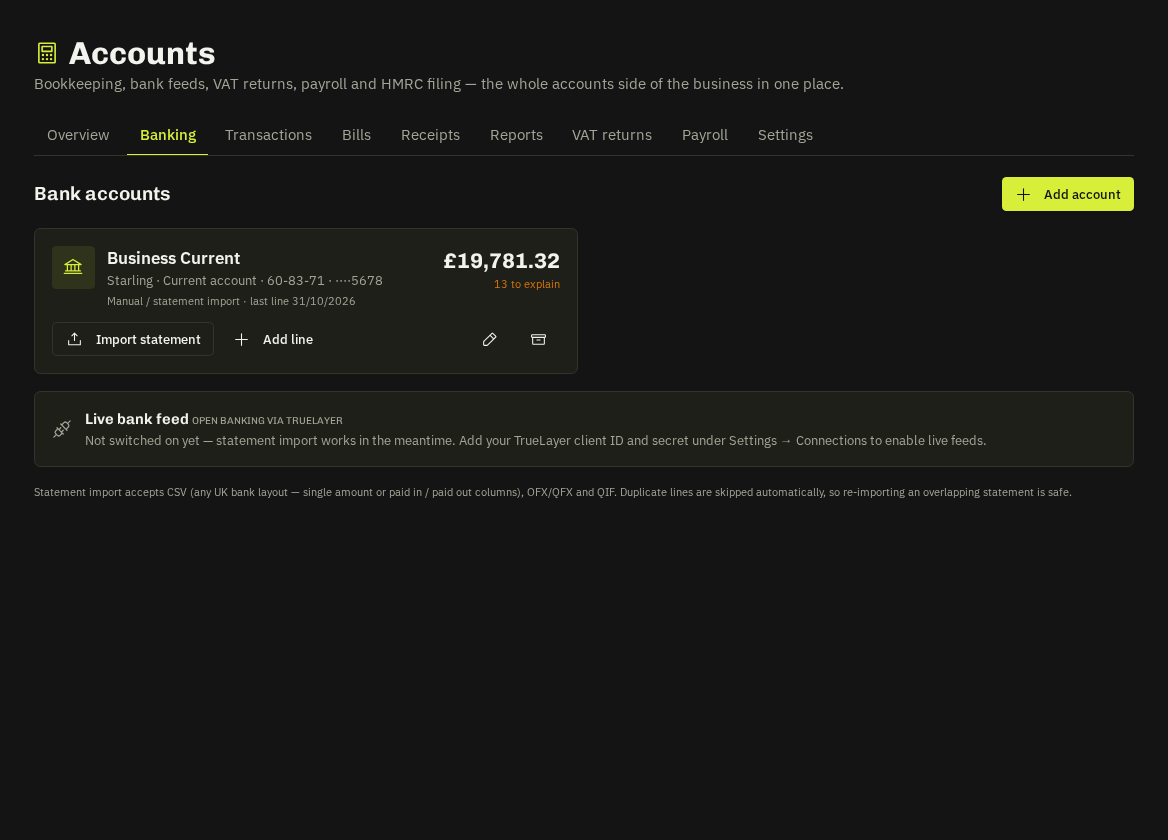
Getting lines in
- Import a statement (CSV, OFX, QFX, QIF) — columns are detected automatically and duplicates are skipped.
- Bank feed via TrueLayer when your workspace (or the platform) has a TrueLayer app connected — lines sync themselves.
- Manual lines for cash.
- Pulled from your accounting software (Xero/QuickBooks/FreeAgent/Sage/Zoho) when pull-back is on — these arrive already explained where the account code maps.
Explaining a line
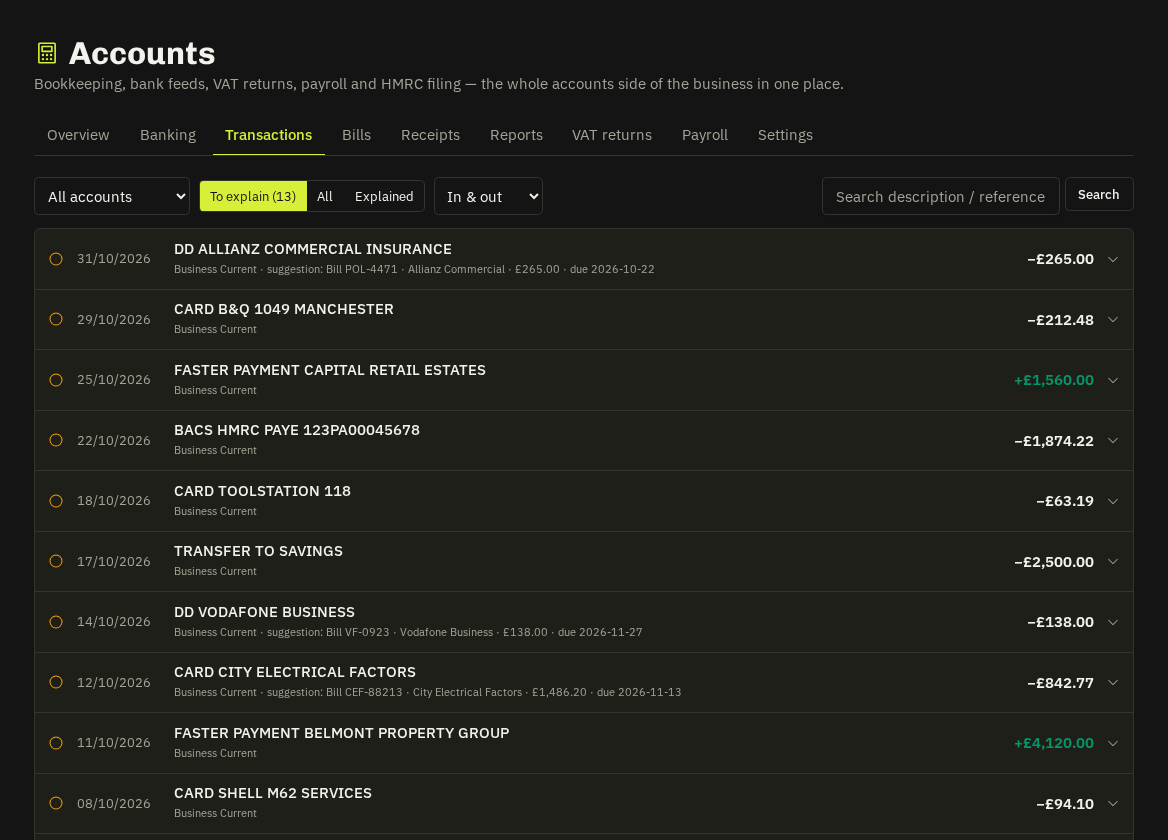
Open a line → the suggestions panel ranks likely matches: an invoice you raised (same amount / reference), a supplier bill, a purchase or works order, a receipt snapped by an engineer, the twin of a transfer, a payroll line or HMRC bill, or a rule. Pick one, or choose a kind (sale, purchase, transfer, VAT/PAYE payment, drawings…) and a category; VAT is worked out from the rate or the invoice.
What explaining does: an invoice receipt marks the invoice paid (clients see it) and blocks overpayment; a bill payment flips the bill to paid; a PO/WO payment marks it paid; un-explaining puts everything back with a timeline note.
Rules
Tick remember this when explaining, or build rules in Settings → Bank rules (text contains, direction, amount or range, optional account → kind, category, VAT). Rules explain matching lines as they arrive and can be applied to existing lines.
Tip: The Transactions tab is the same list across all accounts with filters for unexplained, kind, category and date.
Related: Accounts at a glance · Bills · Receipts, claims & mileage